
 |

|
| ActiveWin: Reviews | Active Network | New Reviews | Old Reviews | Interviews |Mailing List | Forums |
|
|
|
|
|
DirectX |
|
ActiveMac |
|
Downloads |
|
Forums |
|
Interviews |
|
News |
|
MS Games & Hardware |
|
Reviews |
|
Support Center |
|
Windows 2000 |
|
Windows Me |
|
Windows Server 2003 |
|
Windows Vista |
|
Windows XP |
|
|
|
|
|
|
|
News Centers |
|
Windows/Microsoft |
|
DVD |
|
Apple/Mac |
|
Xbox |
|
News Search |
|
|
|
|
|
|
|
ActiveXBox |
|
Xbox News |
|
Box Shots |
|
Inside The Xbox |
|
Released Titles |
|
Announced Titles |
|
Screenshots/Videos |
|
History Of The Xbox |
|
Links |
|
Forum |
|
FAQ |
|
|
|
|
|
|
|
Windows XP |
|
Introduction |
|
System Requirements |
|
Home Features |
|
Pro Features |
|
Upgrade Checklists |
|
History |
|
FAQ |
|
Links |
|
TopTechTips |
|
|
|
|
|
|
|
FAQ's |
|
Windows Vista |
|
Windows 98/98 SE |
|
Windows 2000 |
|
Windows Me |
|
Windows Server 2002 |
|
Windows "Whistler" XP |
|
Windows CE |
|
Internet Explorer 6 |
|
Internet Explorer 5 |
|
Xbox |
|
Xbox 360 |
|
DirectX |
|
DVD's |
|
|
|
|
|
|
|
TopTechTips |
|
Registry Tips |
|
Windows 95/98 |
|
Windows 2000 |
|
Internet Explorer 5 |
|
Program Tips |
|
Easter Eggs |
|
Hardware |
|
DVD |
|
|
|
|
|
|
|
ActiveDVD |
|
DVD News |
|
DVD Forum |
|
Glossary |
|
Tips |
|
Articles |
|
Reviews |
|
News Archive |
|
Links |
|
Drivers |
|
|
|
|
|
|
|
Latest Reviews |
|
Xbox/Games |
|
Fallout 3 |
|
|
|
Applications |
|
Windows Server 2008 R2 |
|
Windows 7 |
|
|
|
Hardware |
|
iPod Touch 32GB |
|
|
|
|
|
|
|
Latest Interviews |
|
Steve Ballmer |
|
Jim Allchin |
|
|
|
|
|
|
|
Site News/Info |
|
About This Site |
|
Affiliates |
|
Contact Us |
|
Default Home Page |
|
Link To Us |
|
Links |
|
News Archive |
|
Site Search |
|
Awards |
|
|
|
|
|
|
|
Credits |



|
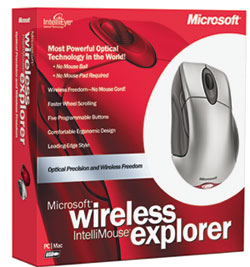
Product: WireLess IntelliMouse Explorer Company: Microsoft Website: http://www.microsoft.com Estimated Street Price: $74.95 Review By: Julien Jay |
IntelliPoint 4.01
|
Table Of Contents |
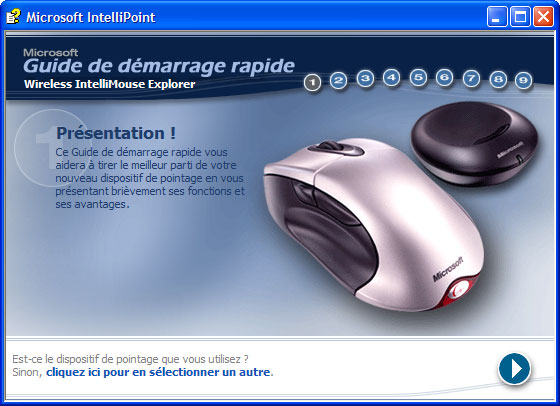
The Wireless IntelliMouse Explorer is provided with the latest version 4.0 of the IntelliPoint drivers. You can update to 4.01 over the web. After you have installed the drivers on your computer, you'll be prompted to reboot your PC. Once your PC has restarted a tutorial will appear explaining you the fundamental steps to use your new Wireless IntelliMouse Explorer. These drivers, that are fully compatible with Windows XP, bring bunch of additional features to the pointing device.
Microsoft
IntelliPoint 4.01 QuickStart Guide (click to enlarge)
-
The Button Assignment feature, located on the Buttons tab, enables users to select a feature for each button. For example, you can reassign a button to enable you to undo a step, making it easy to correct mistakes as they happen. But you can also turn your wheel into a button to perform double click operations painlessly.
-
The ClickLock feature, located on the Actions tab, "locks down" a mouse or trackball button after a single-click. Just click and hold down any mouse or trackball button for a moment, and your click is locked. With ClickLock you can drag objects, select blocks of text, open menus, and so on. Click again to release ClickLock.
-
The Double-Click Speed feature, located on the Actions tab, changes the speed at which your software programs respond to one double-click. Use this feature to adjust your double-click speed if your double-clicks aren't always recognized by your program.
-
The Orientation feature, still located on the Actions tab, improves your pointer movement for the way in which you hold your device. Using Orientation, you can hold your mouse or trackball in the position that is most comfortable for you and then defines which way is "up."
The Pointer Speed feature,
located on the Pointer Options tab, adjusts the speed of the pointer in
relation to the speed of your mouse or trackball. Use this feature to
change your pointer speed if the pointer moves too slowly or too quickly
when you move your mouse or trackball.
The SnapTo feature,
located on the Pointer Options tab, automatically moves the pointer to the
default button when you open a dialog box.
The Trails feature,
located on the Pointer Options tab, displays a comet-like trail when you
move the pointer. Use this feature to make the pointer easier to see.
(This feature isn't available in Windows NT.)
The Vanish feature,
located on the Pointer Options tab, hides the pointer when you type. The
pointer reappears when you move the mouse or trackball.
The Scrolling feature,
located on the Wheel tab, enables you to change the number of lines that
you scroll with each notch of the wheel. You can even change the setting
to scroll one screen at a time.
The Fast Wheel Scrolling feature,
located on the Wheel tab, is new to IntelliPoint 4.0! Basically the wheel
lets you move through documents quickly without clicking on the scroll
bar. But new to this release is the fact the accelerated wheel now reacts
to how quickly you roll the wheel, saving time and effort.
The Wheel Troubleshooter feature,
located on the Wheel tab, helps you to fix problems that you may encounter
when you use the wheel in different programs.
The Batteries� State frame,
of the Wireless tab, presents a gauge of the actual level of power
remaining in the currently installed batteries. When the battery level is
too low you�ll regularly receive alerts (you can define the interval of
the alerts) letting you know it may be judicious to replace them.
The Transmission Channel,
of the Wireless tab, lets you change the frequency of the actual
transmission�s channel. When you push the button of the radio receiver a
popup dialog box will appear on your screen prompting you to push the
connect button located on the bottom of the WIME to change the current
frequency.
IntelliPoint tray icon:
IntelliPoint 4.0 displays an icon in the tray notification area of your
system to provide quick access to the features offered by the drivers. If
the battery level is ever too low, the icon will show a red exclamation
mark indicating it�s urgent to replace batteries. Programmable
Buttons
IntelliPoint 4.01 lets you assign more than 35 common functions to your
mouse�s buttons. These are the most common commands that users execute. For
specialized functions, such as game software commands, you can map both the
game command and the mouse button to the same keyboard key. The Wireless
IntelliMouse Explorer now gives you five buttons to program. These five
buttons are obviously supported in the DirectX set of API (starting at
version 7), allowing you to skip the step of programming a keyboard key
first.
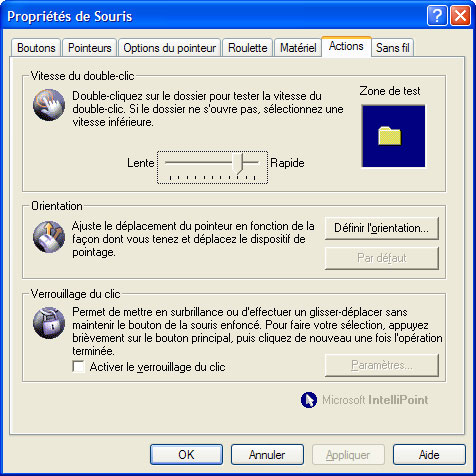
IntelliPoint
4.01 Actions Tab (click to enlarge)
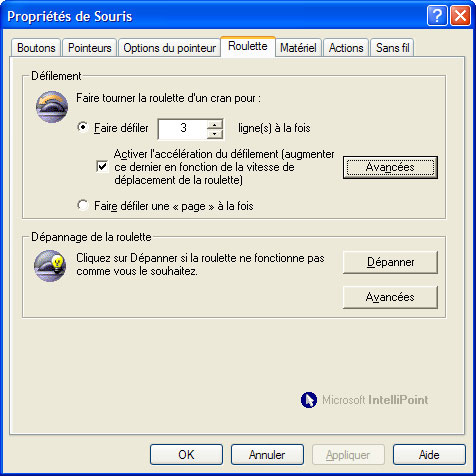
IntelliPoint
4.01 Wheel Tab (click to enlarge)
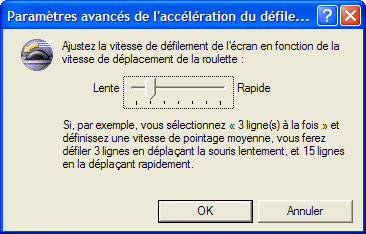
Fast Wheel
Scrolling Feature (click to enlarge)
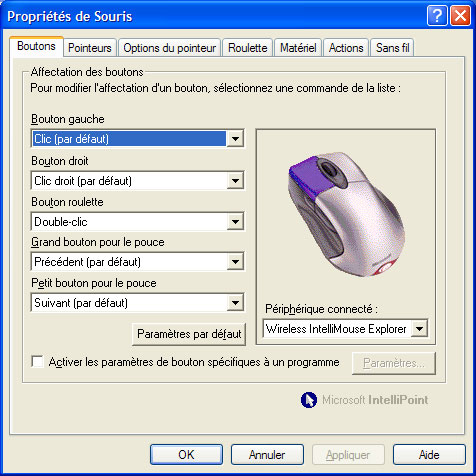
Microsoft
IntelliPoint 4.01 Programmable Buttons Tab (click to enlarge)


