
| ActiveWin: Win 2000 | Active Network | Intro | History | Links | FAQ | Mailing List | Forums |
|
|
|
|
|
DirectX |
|
ActiveMac |
|
Downloads |
|
Forums |
|
Interviews |
|
News |
|
MS Games & Hardware |
|
Reviews |
|
Support Center |
|
Windows 2000 |
|
Windows Me |
|
Windows Server 2003 |
|
Windows Vista |
|
Windows XP |
|
|
|
|
|
|
|
News Centers |
|
Windows/Microsoft |
|
DVD |
|
Apple/Mac |
|
Xbox |
|
News Search |
|
|
|
|
|
|
|
ActiveXBox |
|
Xbox News |
|
Box Shots |
|
Inside The Xbox |
|
Released Titles |
|
Announced Titles |
|
Screenshots/Videos |
|
History Of The Xbox |
|
Links |
|
Forum |
|
FAQ |
|
|
|
|
|
|
|
Windows XP |
|
Introduction |
|
System Requirements |
|
Home Features |
|
Pro Features |
|
Upgrade Checklists |
|
History |
|
FAQ |
|
Links |
|
TopTechTips |
|
|
|
|
|
|
|
FAQ's |
|
Windows Vista |
|
Windows 98/98 SE |
|
Windows 2000 |
|
Windows Me |
|
Windows Server 2002 |
|
Windows "Whistler" XP |
|
Windows CE |
|
Internet Explorer 6 |
|
Internet Explorer 5 |
|
Xbox |
|
Xbox 360 |
|
DirectX |
|
DVD's |
|
|
|
|
|
|
|
TopTechTips |
|
Registry Tips |
|
Windows 95/98 |
|
Windows 2000 |
|
Internet Explorer 5 |
|
Program Tips |
|
Easter Eggs |
|
Hardware |
|
DVD |
|
|
|
|
|
|
|
ActiveDVD |
|
DVD News |
|
DVD Forum |
|
Glossary |
|
Tips |
|
Articles |
|
Reviews |
|
News Archive |
|
Links |
|
Drivers |
|
|
|
|
|
|
|
Latest Reviews |
|
Xbox/Games |
|
Fallout 3 |
|
|
|
Applications |
|
Windows Server 2008 R2 |
|
Windows 7 |
|
|
|
Hardware |
|
iPod Touch 32GB |
|
|
|
|
|
|
|
Latest Interviews |
|
Steve Ballmer |
|
Jim Allchin |
|
|
|
|
|
|
|
Site News/Info |
|
About This Site |
|
Affiliates |
|
Contact Us |
|
Default Home Page |
|
Link To Us |
|
Links |
|
News Archive |
|
Site Search |
|
Awards |
|
|
|
|
|
|
|
Credits |



Step-by-Step Guide to Software Installation and Maintenance
Software Installation and Maintenance for the Windows� 2000 operating system allows administrators to manage software for their organizations, including applications, service packs, and operating system upgrades. This overview guide explains how to use the Software Installation extension of the Group Policy Microsoft Management Console snap-in to specify policy settings for application deployment for groups of users and computers.
Introduction
This document is part of a set of step-by-step guides that introduce the Change and Configuration Management features of the Windows� 2000 operating system. This guide presents an overview of Software Installation and Maintenance. It also explains how to use the Software Installation extension of the Group Policy Microsoft Management Console snap-in to specify policy settings for application deployment for groups of users and computers.
Software Installation and Maintenance is dependent upon both the Active Directory and Group Policy. Administrators who are responsible for Software Installation and Maintenance should be familiar with both of these technologies.
Publish vs. Assign
Administrators can use Software Installation and Maintenance to either publish or assign software:
- Publish. Administrators publish applications that
users may find useful, allowing users to decide whether to install
the application. You can only publish to users, not computers.
- Assign. Administrators assign applications that users require to perform their jobs. Assigned applications are available on users� desktops automatically.
For a comparison of these capabilities, see Table 1 below. Administrators deploy applications in Group Policy objects (GPOs) that are associated with Active Directory containers such as sites, domains, and organizational units (OUs).
Table 1. Publishing and Assigning Software
| Publish to Users | Assign to Users | Assign to Computers | |
|---|---|---|---|
| After the administrator deploys the software, it is available for installation: | If an application is deployed in a GPO that is already applied to the user from a previous logon, it is available for installation in the current logon session (from the Add/Remove Programs Control Panel). If the application is deployed in a new GPO that is not already associated with the user, then it is available at the next logon. | If an application is deployed in a GPO that is already applied to the user from a previous logon, it is available for installation in the current logon session (from the Add/Remove Programs Control Panel). If the application is deployed in a new GPO that is not already associated with the user, then it is available at the next logon. | The next time the computer starts (reboot). |
| Typically, users install the software from: | The Add/Remove Programs in Control Panel. | Start menu shortcut. Desktop shortcut. Add/Remove Programs in Control Panel. |
The software is already installed. |
| If the software is not installed and the user opens a file associated with the software, will the application install? | Yes. | Yes.
|
The software is already installed. |
| Can the users remove the software using the Add/Remove Programs in Control Panel? | Yes. Users can re-install the application from the Add/Remove Programs in Control Panel. | Yes. The software will be re-advertised immediately. This means that the shortcuts will be present in the users� desktops and they can re-install the application by clicking on a shortcut, for example. | No. Only the local administrator can remove the software. A user can run a repair on the software. |
| Supported installation file types: | Windows Installer packages (.msi files), and ZAP files. | Windows Installer packages (.msi files) | Windows Installer packages (.msi files) |
Supported Installation File Types
Software Installation and Maintenance supports Windows Installer packages (.msi files), repackaged files, and .zap files.
A Windows Installer package (.msi file) contains all the information necessary to describe to the Windows Installer how to set up an application. It covers every conceivable situation: various platforms, different sets of previously installed products, earlier versions of a product, and numerous default installation locations. Some applications such as Office 2000 provide their own .msi files. These files. These are referred to as natively-authored Windows Installer packages.
You can create Windows Installer packages for your applications by using package-authoring tools provided by various vendors such as InstallShield Software Corporation and WISE Solutions, Inc. See the section on Windows Installer Applications for more information.
You can also repackage an existing application for use with the Windows Installer. To create a package for the application, you use a repackaging tool such as the VERITAS WinInstall LE, described later in this document.
Non-Windows Installer-based applications must use a .zap file to describe their existing setup program. A .zap file is a text file (similar to .ini files) that provides information about how to install a program, the application properties, and the entry points that the application should install. A sample .zap file is included in the appendix An Excel 97 .Zap File.
Prerequisites and Initial Configuration
Prerequisites
This Software Installation and Maintenance document
is based on the two-part, Step-by-Step
Guide to a Common Infrastructure for Windows 2000 Server Deployment.
Before beginning the steps in this guide, you need to
build the common infrastructure, which specifies a particular hardware
and software configuration. If you are not using the common
infrastructure, you need to make the appropriate changes to this guide. Software Installation and Maintenance is dependent on
Group Policy. It is highly recommended that you complete the Step-by-Step
Guide to Understanding the Group Policy Feature Set before the
Software Installation and Maintenance guide. Note: If you completed the Group Policy
guide, it may be necessary to disable some of the policies particularly
the loopback policies, as they may not allow people to install software
from the Add/Remove Programs in the Control Panel. Additionally, you may want to use the Step-by-Step
Guide to Repackaging Software for the Windows Installer Using VERITAS
WinINSTALL LE and repackage some software before you continue with
this guide. Software Installation and Maintenance leverages the
new Windows Installer service that is a part of the Windows FOOTNOTE?
family of operating systems. For the best performance and the
greatest reduction in TCO, you need to use applications that support
the Windows Installer. No sample applications are supplied for these guides.
You must acquire applications such as Microsoft Office 2000 that supply
a natively authored Windows Installer package (an .msi file). Or you
must use an authoring or repackaging tool to create Windows Installer
packages for your software. You can author a Windows Installer package using a
package-authoring tool if you have all of the files and know the
architecture of the application. Package authoring tools are available
from the following vendors: If you want to use Software Installation and
Maintenance with an existing application, you may want to consider
repackaging the application to support the Windows Installer. The
VERITAS WinInstall LE for repackaging of existing applications for use
by the Windows Installer is available on the Windows 2000 Server
CD. If you are unfamiliar with repackaging software, see the Step-by-Step
Guide to Repackaging Software for the Windows Installer Using VERITAS
WinINSTALL LE which explains how to use their repackager. For more information on this tool, please see the
VERITAS Web site. Best Practice: Other companies will provide their applications with
native Windows Installer support. Please contact your favorite
application vendors for information on their Windows Installer support
plans. It is possible to publish applications that do not
install with the Windows Installer. They can only be published to users
and they are installed using their existing Setup programs. Because these non-Windows Installer applications use
their existing Setup programs, such applications cannot: Before an existing Setup program can be used with
Software Installation and Maintenance, it must be described in a ZAP
(.zap) file, which is a text file, similar to .ini files, which
provides the following information: Note that .zap files are stored in the same location
on the network as the Setup program they reference. The appendix
contains an example of a .zap file. To manage software, you must create a software
distribution point (SDP) that contains all the Windows Installer
packages (.msi files), .zap files, and the actual software files. To create a software distribution point, you do the
following: The following procedure shows you how to set up the
distribution point. To create the software distribution point: At this point, you should repeat the preceding steps
to create any additional folders for the software you are managing.
Note that each sub-folder does not need to be explicitly shared or have
permissions set. Afterwards, you should copy the Windows Installer
packages, .zap files, and the application files to the appropriate
shared folders. You should note that for computer-assigned
applications, the network share needs to be reachable by the local
system account. This is not the default for Windows NT 4.0 and Novell
servers. Best Practice: Administrators should
consider using either the distributed file system (Dfs) feature of
Windows 2000 Server or Microsoft Systems Management Server to manage
their software distribution points. Software
Installation Snap-in Configuration The Active Directory Users and Computers snap-in is
part of the Administrative Tools program group. It already has a Group
Policy and Software Installation snap-in. You may either follow these
steps to configure your own tool, a saved snap-in, or use the Active
Directory Users and Computers snap-in. To create the Software Installation snap-in: As you go through this guide, you may want to save
changes to the MMC console. To save your changes: Your snap-in will look similar to Figure 1 below. If you have already completed the Step-by-Step
Guide to Understanding the Group Policy Feature Set, then you may
have already created the necessary Group Policy objects (GPOs). To create a Group Policy Object (GPO): At this point, you could add another GPO�giving
each one that you create a meaningful name�or you could choose to
edit a GPO, which starts the Group Policy and Software Installation
snap-ins. If you have more than one GPO associated with an Active
Directory folder, verify the order; a GPO that is higher in the list is
processed first. Best Practice:Consider using security
descriptors (DACLs) on the GPO to increase the granularity of software
management for your organization. To close the Software Installation snap-in: To edit a Group Policy Object (GPO): You have opened the Software Installation snap-in for
the HQ Policy GPO. Your snap-in should look like Figure 2 below. You can use the Software Settings node in the console
tree under HQ Policy and Computer Configuration to assign
an application to computers that are managed by this GPO. You
use the Software Settings node under the User Configuration node
to assign or publish an application to users who are managed by
this GPO. You can configure default settings for Software
Installation on a per-Group Policy Object (GPO) basis. To specify software installation defaults for the
selected Group Policy object, you use the Software Installation
Properties dialog box, shown below in Figure 3. This section
explains some of the available options. Setting Options for
New Packages and Installation User Interface To control what happens when you add a new package to
the selected GPO, you use the General tab in the Software
Installation Properties dialog box, and set options in the New
packages frame. The default behavior is that the Deploy Software
dialog box appears each time, and the administrator can select one
of the choices from that dialog box. If you are going to deploy several packages to a GPO
as published without transforms, you can select Publish in the New
Packages frame, and every package that is deployed is automatically
published. If you are going to add a package with a transform
(customization or .mst file), you must select Advanced published or
assigned. Note: > You cannot add or change
transforms (.mst files) after the software is deployed. This setting is most useful when an administrator
is adding several applications at one time. For example, if an
administrator is adding five applications to this GPO and they are all
to be published with no transforms, then the administrator could set
this to Publish. Similarly, the options in the Installation user
interface options frame allow the administrator to set how much of
the user interface (UI) the Windows Installer presents to a user during
installation. The Basic UI (the default option) only presents progress
bars and messages; no user choices are presented other than Cancel.
The Maximum UI option shows the UI that the author of the
Windows Installer package defined. Setting Options for
Categories When an organization has a large amount of software
to manage, administrators can create categories for software. These
categories can then be used to filter the software in the Add/Remove
Programs in Control Panel. For example, you could create a
category called Productivity Applications and include software
such as word processing and database management applications. Although there is a Categories tab on the Software
installation Properties dialog box, categories are established on a
per-domain basis. This means the domain administrator can create and
edit the categories from any of the Software installation Properties
pages for any GPO in the domain. Administrators can then use these
categories with software they are managing within any GPO in the
domain. There are no default or supplied categories. Best Practice: > Because Categories are
established per domain rather than per GPO, an organization should
standardize the Categories and create them in a centralized manner. To configure the default settings: Note: > The exact navigation above may
differ on your network. Be sure that you are pointing to the software
distribution point relative to the network rather than relative to the
local drive on the server. Later, if you want to change these defaults or add
additional categories for the organization, you can return to the Software
installation Properties dialog box. As mentioned previously,
categories are per-domain, not per GPO. At this point you can either close the Software
Installation snap-in or proceed with the scenarios described next. This guide covers a few basic scenarios for Software
Installation and Maintenance, including: As the packages for these applications are not
included, you may have to modify the step-by-step guide. You may use
applications that either natively support the Windows Installer or that
you have repackaged for the Windows Installer. Please note that this guide does not describe all of
the possible Software Installation and Maintenance scenarios. You
should use this guide to gain an understanding of Software Installation
and Maintenance. Then think about how your organization might use
software installation and the other IntelliMirror features to reduce
TCO. Note: > If you completed the Group
Policy step-by-step guide, it may be necessary to undo some of the
Group Policy to complete this guide. For example, the Loopback policy
disables the ability to access the Add/Remove Programs in the Control
Panel. Whether publishing or assigning software, the basic
steps are fundamentally the same. This guide presents a scenario for assigning
a repackaged version of Microsoft Word 97 for users. This procedure assumes that you have already created
a Word97 folder in the software distribution point created earlier, and
that you are using a repackaged version of Microsoft Word 97. Note: > To assign to users, start in the
Group Policy snap-in User Configuration node. To assign to computers,
start in the Computer Configuration node. To assign
repackaged Word or other software: Note: > If you are going to deploy a
Windows Installer package with a transform, you have to select Configure
package properties in the Deploy Software dialog so that you
can associate the transform with the package. Make any other changes to
the properties at this point, before you press OK to either
assign or publish the software. The application is added to the Software Installation
snap-in as assigned. After the application is assigned, you can
right-click the application entry in the details pane to view the
assigned applications property pages. The application is assigned to all the users managed
by the Headquarters GPO. Verifying the Effect of Assigning Word To verify the effect of assigning Word 97 to the
Headquarters GPO, you can log on to Windows 2000 Professional as a user
who is managed by the Headquarters OU. (If you are using the common
infrastructure, you could log on to the client as elizabeth@reskit.com,
for example.) When you log on to Windows 2000 Professional, you
should see a Microsoft Word icon on the Start menu. If you select Word, the Windows Installer installs
Word for you. While the installation is proceeding, you should see a
progress indicator from the Windows Installer. When the installation is
complete, Word starts and you can edit a document. If the software installation becomes damaged, then
the next time the user selects Word from the Start menu, if all the key
files as defined in the Windows Installer package for Word are present,
Word starts. If a key file is missing or damaged, the Windows Installer
repairs Word and then starts it. To publish Excel 97 without repackaging it for the
Windows Installer, you must first create a .zap file for Excel. Use the
.zap file example in the appendix as a model. You also need to create a
folder for Excel97 in the software distribution point you created
earlier. Open the Software Installation snap-in saved
previously, and edit the Headquarters GPO. (See the steps in the
preceding section.) When you are ready to publish Excel 97, the
snap-in should look like it did when you assigned Word 97 in the
previous section. To publish Excel: In the Group Policy snap-in console tree, under User
Configuration, double-click Software Settings, right-click Software
installation, and then select New from the context menu.
Click Package. In the Files of type combo box, click the down
arrow, and then click ZAW Down-level applications package (*.zap).
Click Excel97, and click Open. Excel 97 is published to the users managed by the
Headquarters GPO. Because a ZAP file publishes the existing Setup, the
Setup will not run with elevated privileges. Therefore, you will need
to supply administrative privileges during the Setup. This can be done
by using the Install Program as Other User dialog box. Accessing
this dialog is controlled by policy. A policy called Request
credentials for network installations is available in the Group
Policy snap-in, under User Configuration\Administrative
Templates\Windows Components\Windows Explorer. If enabled,this
policy displays the Install Program As Other User dialog box
even when a program is being installed from files on a network computer
across a local area network. For more information, see the Explain tab
on this policy property page. To set the Request
Credentials for network installations policy: Verifying the
Effects of Publishing Excel 97 To verify the effect of publishing Excel 97 to the
Headquarters GPO, first log on to Windows 2000 Professional as a user
who is managed by the Headquarters OU. (If you are using the common
infrastructure, you could log on as elizabeth@reskit.com, for example.) To confirm the
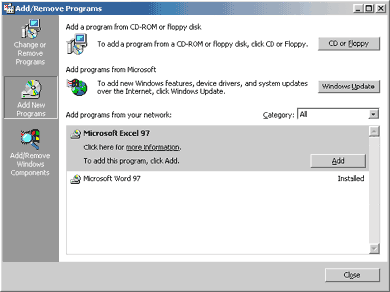
effects of publishing Excel 97: Note: > Word 97, which was assigned, is
listed in the Add/Remove Programs dialog box. This is so that
users can add or remove the assigned program if they need to. Even if a
user removes the assigned application, it is available for installation
again the next time the user logs on. Figure 4. Add/Remove Excel 97 To remove Excel 97: Office 2000 comes with a Windows Installer package
natively authored. Before performing this upgrade, use the Office 2000
Customization Wizard to create a transform. You must substitute the
name of your transform in this scenario. This procedure assumes that you have placed the
necessary files (.msi, .mst, and so on) in a folder called Office in
the software distribution point. To upgrade Word 97 to Office 2000 Note: > It is important that you do not
click OK until you have set all the options for the modifications. Office 2000 with the transform is added to the
Software Installation snap-in. The snap-in should now show Office 2000
as assigned, and it should show an upgrade relationship between Word 97
and Office 2000. At this point, if you log on to Windows 2000 as a
user in the HQ Policy GPO, you should see Word 97 being removed, the
start of the upgrade. When you select any of the Office icons from the Start
menu, you install Office 2000 to complete the upgrade. You can upgrade Windows 2000 to the release version. Note: > The operating system build being
upgraded must be older than the build you are upgrading to. If you completed the Group Policy guide before this,
you may have turned off applying Group Policy to computers. If this is
the case, you need to change this before this Software Installation
policy can be applied on the computers. In this scenario, you assign the upgrade of Windows
2000 to computers managed by a policy created for the Desktops OU under
Resources. You could just as easily publish it for users. The RES-WKS-01 computer should be in the Desktops OU.
If it is not, you need to move it to one of the OUs under the Resources
OU. You can move the computer by highlighting it in the details pane of
the Active Directory Users and Computers Snap-in and then selecting Move
from the context menu. Note: > To deploy the Winnt32.msi
package, you need to modify the Unattend.txt file to include the
Windows 2000 CD key information. Otherwise, the Setup program would ask
for this information in a non-interactive desktop and wait indefinitely. Note: > You may want to place the
Windows 2000 CD in the CD drive of the server, and share the CD-ROM
drive as the software distribution point for these files. This saves
having to copy all the files to the software distribution point,
although if the CD-ROM drive is not fast, the install may take longer. At this point you should restart the RES-WKS-01
computer. When you do, the normal shutdown and startup messages are
displayed. Eventually, in the Windows 2000 Professional startup
dialogs you should see the following messages: Followed by: The computer restarts and continues the upgrade. The example company, organization, products, people,
and events depicted in these guides are fictitious. No association with
any real company, organization, product, person, or event is intended
or should be inferred. This common infrastructure is designed for use on a
private network. The fictitious company name and DNS name used in the
common infrastructure are not registered for use on the Internet.
Please do not use this name on a public network or Internet. The Microsoft Active DirectoryTM structure
for this common infrastructure is designed to show how Microsoft
Windows 2000 Change and Configuration Management works and functions
with the Active Directory. It was not designed as a model for
configuring an Active Directory for any organization�for such
information see the Active Directory documentation. Appendix
� An Excel 97 .Zap File Below is an example .zap file for
Microsoft Excel 97. Use notepad to create the following text
file and save it as excel.zap in the network folder that contains the
Excel 97 setup program. The comments (any line that starts with ';')
explain what each entry in the file is for. The underscore ( _ ) is a continuation
symbol, these lines should appear together on one line. While the following example shows all of
the possible entries in a ZAP file, note that many of these entries are
optional. The smallest possible ZAP file to publish Excel 97
using the existing setup would be: [Application] ; ZAP file for Microsoft Excel 97 [Application] ; Only FriendlyName and SetupCommand are
required, ; everything else is optional ; FriendlyName is the name of the
application that ; will appear in the software
installation snap-in ; and the Add/Remove Programs Control
Panel. ; REQUIRED FriendlyName = "Microsoft Excel
97"
; SetupCommand is the command line that
we use to ; Run the application setup. If it is a
relative ; path, it is assumed to be relative to
the ; location of the ZAP file. ; Long file name paths need to be
quoted. For example: ; SetupCommand = "long folder\setup.exe"
/unattend ; or ; SetupCommand =
"\\server\share\long _ ; folder\setup.exe" /unattend ; REQUIRED
SetupCommand = setup.exe ; Version of the application that will
appear ; in the software installation snap-in
and the ; Add/Remove Programs Control Panel. ; OPTIONAL DisplayVersion = 8.0
; Manufacturer of the application that
will appear ; in the Software Installation Snap-in
and the ; Add/Remove Programs Control Panel. ; OPTIONAL Publisher = Microsoft
; URL for application information that
will appear ; in the Software Installation Snap-in
and the ; Add/Remove Programs Control Panel.; ; OPTIONAL URL = http://www.microsoft.com/office
; Language for the application, in this
case US ; English. ; OPTIONAL LCID = 1033
; Architecture, in this case, Intel. ; OPTIONAL Architecture = intel
; the [ext] [CLSIDs] and [progIDs]
sections are ; all optional
[ext] ; File extensions for which this
application ; will "auto-install". They are not required if
you ; do not want the application to
auto-install. This ; entire section is OPTIONAL.
; Note: You can put a dot in front of
the file ; extension. Text > after the
first = is optional and ; ignored, but the first = is required
(or the whole ; line will be ignored). XLS= XLA= XLB= XLC= XLM= XLV= XLW=
[CLSIDs] ; CLSIDs that this application will
"auto-install" ; for. This entire section is OPTIONAL. ; Format is CLSID with LocalServer32, ; InprocServer32, and/or InprocHandler32
(in a ; comma separated list) after the =.
{00024500-0000-0000-C000-000000000046}=LocalServer32 {00020821-0000-0000-C000-000000000046}=LocalServer32 {00020811-0000-0000-C000-000000000046}=LocalServer32 {00020810-0000-0000-C000-000000000046}=LocalServer32 {00020820-0000-0000-C000-000000000046}=LocalServer32 {00020820-0000-0000-C000-000000000046}=LocalServer32
[progIDs] ; progIDs that this application will
"auto-install" ; for. This entire section is OPTIONAL.
; format is a CLSID, with the
corresponding progid ; listed after the = sign {00024500-0000-0000-C000- _ 000000000046}=Excel.Application {00024500-0000-0000-C000- _ 000000000046}=Excel.Application.8 {00020821-0000-0000-C000-000000000046}=Excel.Chart {00020811-0000-0000-C000-000000000046}=Excel.Chart.5 {00020821-0000-0000-C000-000000000046}=Excel.Chart.8 {00020810-0000-0000-C000-000000000046}=Excel.Sheet.5 {00020820-0000-0000-C000-000000000046}=Excel.Sheet.8 {00020820-0000-0000-C000-000000000046}=Excel.Sheet {00020820-0000-0000-C000-000000000046}=Excel.Template {00020820-0000-0000-C000-000000000046}=Excel.Workspace
This feature information was obtained from the Microsoft Windows 2000
website at http://www.microsoft.com/windows2000
and are linked from ActiveWin.com for your convenience and is subject to
Microsoft's copyright. For the most accurate information please visit the
official site.
Windows Installer
Applications
Non-Windows
Installer Applications
Creating a
Software Distribution Point for the Windows Installer Applications
Everyone: Read
Administrators: Full Control, Change, and Read.
Creating a
Software Installation Snap-in Tool
Saving the
Software Installation Snap-in Tool
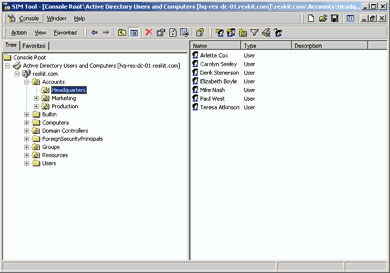
Figure 1. Software Installation Snap-InCreating a Group
Policy Object
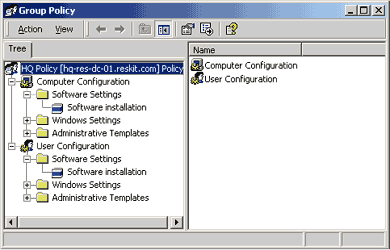
Figure 2. Group Policy Snap-InConfiguring the
Software Installation Defaults for a Group Policy Object
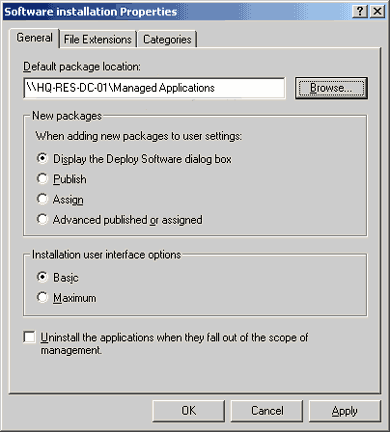
Figure 3. The Software Installation Properties page
You need to browse for the software distribution point you created in
the previous section relative to the network share location,
rather than the local drive on the server. This ensures that you are
managing software from the network share location that users can
access. Users cannot access the package from the local drive of the
server.
Software
Installation and Maintenance Scenarios
Scenarios Covered
in this Document
Assigning
Repackaged Word
Publishing Legacy
Excel
You should see the Install Program As Other User dialog box
shown in Figure 5 below because you are installing a non-Windows
Installer based application.
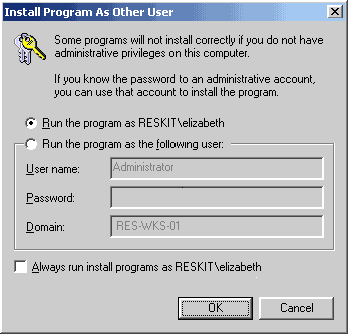
Figure 5. Install Program as Other User
Excel now installs using the original Setup program. You should
follow the instructions in the original Setup UI to complete the
installation. After you have installed Excel, you can close the
application.
Note: > Because Excel 97 was installed using a .zap
file, you do not have the option to force the removal as you would
with a Windows Installer file.
Microsoft Excel 97 no longer appears in the details pane.
Upgrade Microsoft
Word 97 to Office 2000 With a Transform
Review all the tabs to make sure you have edited all the properties
and you are ready to assign the upgrade. Click OK.Assigning Windows
2000 to a Computer Upgrading Windows 2000
Applying Software Installation settings_
Windows Installer installing managed software
    Windows 2000 Professional_
Important Notes
FriendlyName = "Microsoft Excel 97"
SetupProgram = \\servername\sharename\Excel 97\setup.exe
Return To The Windows 2000 Section


